Google Review QR Code for Small Business
A practical guide for small businesses that want to use a Google review QR code without turning it into a gimmick. Covers link setup, placement, copy, SMS follo
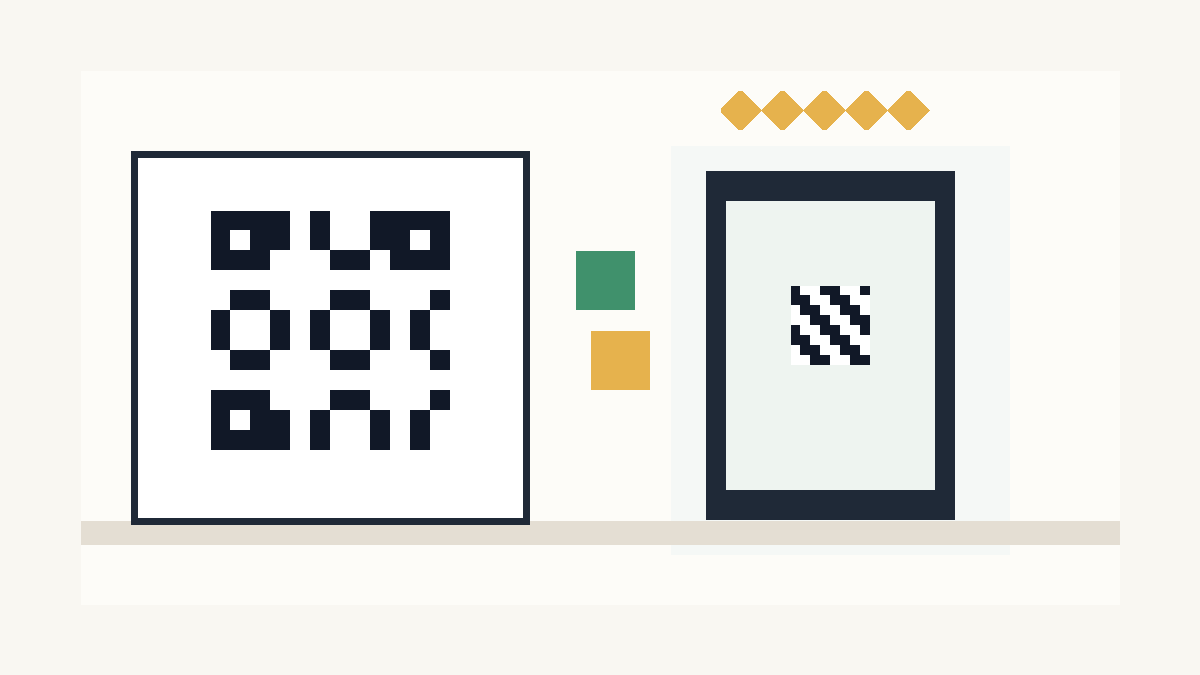
What a Google review QR code does
A Google review QR code points customers to your Google Business Profile review link. You can place it anywhere a customer already interacts with your business:
- Front desk signs
- Table tents
- Receipts
- Invoices
- Appointment cards
- Service leave-behinds
- Packaging inserts
- Follow-up emails
- SMS review requests
The QR code should send customers straight to the review screen, not your home page, contact page, or Google Maps listing. Extra taps cost reviews.
Who should use one
Use a review QR code if customers already visit your location, receive printed materials, or interact with your team in person.
It fits restaurants, cafes, salons, med spas, dental offices, home service crews, auto detailers, fitness studios, real estate teams, contractors, and local professional services.
It also works for mobile businesses. A plumber can leave a card after a clean job. A mobile detailer can put the code on a thank-you card. A contractor can include the code with the final invoice.
If you only serve customers online, you can still use the same review link in email and SMS. You may not need the printed QR code.
How to create the link
Start inside your Google Business Profile. Look for the review sharing option and copy the review link. Test it on your phone before you turn it into a QR code.
Check three things:
- The link opens the right business.
- The review box appears with as few taps as possible.
- The link works outside your logged-in Google account.
Do not use a link from a random search result unless you test it. Google changes layouts, and a copied browser URL can break or send customers to the wrong screen.
How to make the QR code usable
Use a QR code generator that lets you download a clean PNG or SVG. Then place it in a design with a direct instruction.
Bad copy: "Scan me."
Better copy: "Happy with your visit? Scan to leave us a Google review."
For a service business, use copy that fits the moment:
- "Did we solve the issue? Scan to leave a Google review."
- "Thanks for choosing us. Scan to share your experience."
- "Had a good appointment? Scan to review us on Google."
Keep the design plain. Give the code breathing room. Print it large enough for a phone camera to catch it without a customer leaning over the counter.
Where to place it
Put the code where a happy customer can act without feeling watched.
At a front desk, place it near the checkout area, not behind the employee. In a restaurant, put it on a table tent or receipt insert. For a home service crew, put it on a leave-behind card with the technician's name. For a salon or med spa, add it to the appointment follow-up card.
Avoid placements that interrupt the job. Customers should see the code after they receive value, not before.
What to say when you ask
Your team does not need a script that sounds fake. They need one sentence that fits the job.
Try this:
"If we took good care of you today, would you mind scanning this and leaving us a Google review? It helps local customers find us."
For home services:
"If everything looks good, a Google review would help us a lot. The card has the QR code."
For appointment-based businesses:
"If you were happy with the visit, the QR code on this card goes straight to our Google review page."
Ask after the customer has said yes to the work. Do not pressure people. Do not offer discounts for reviews. Do not ask customers to mention specific words.
Why the QR code is not the whole system
A QR code helps in-person customers. It will not catch everyone.
Some customers need the request later. Some need the link by text. Some forget until they get home. Some had a poor experience, and your team needs a way to catch that feedback before it turns into a public complaint.
A review system covers those gaps. It sends SMS and email requests, routes unhappy customers toward private feedback, tracks who received a request, and gives your team a repeatable process.
Patchwork Sites includes a QR code generator in its review-generation plans because the code works best as one piece of a larger review ask.
Simple setup checklist
Use this checklist before you print anything:
- Claim and verify your Google Business Profile.
- Copy the direct Google review link.
- Test the link on a phone that is not logged into your business account.
- Create the QR code from that link.
- Add plain copy above or below the code.
- Print a small test batch.
- Place it at the right customer moment.
- Train the team on one natural ask.
- Review results after two weeks.
- Add SMS or email follow-up if customers do not scan in person.
Do not overbuild the first version. Launch the code, test placement, and improve the ask.
When to use SMS instead
Use SMS when the customer books appointments, signs invoices, or gives you a mobile number as part of the normal job.
SMS works after the visit, when the customer has time to write. It also lets you send the exact link without asking them to scan anything.
For many local businesses, the best setup uses both. The QR code catches people at the counter or job site. SMS catches the rest.
Patchwork's Starter review-generation plan starts at $97/month and includes up to 100 review requests per month, SMS and email campaigns, Google Business integration, smart review routing, a QR code generator, and a monthly performance report. Growth is $197/month for unlimited requests, AI-assisted responses, weekly reports, and competitor benchmarking. Multi-Location is $397/month for up to 5 locations with per-location dashboards, centralized reporting, priority support, custom branding, and API access.
Tie the QR code back to your website
Your website should support the review ask. Add a clear Reviews or Testimonials section if you have approved reviews to show. Make sure your contact page, booking embed, and service pages help visitors take the next step after they read those reviews.
If your site looks outdated, takes too long to load, or hides the booking path, more reviews will not fix the whole customer journey.
Patchwork Sites builds affordable small business websites for that exact gap. Launch starts at $997 for a 5-page site with no CMS. Grow is $1,797 for up to 7 pages with Sanity CMS. Custom work gets scoped when you need more pages, more CMS types, or custom forms and API integrations.
The practical answer
Create the QR code. Put it where happy customers already are. Train your team to ask in one sentence. Then add SMS and email follow-up when you want a process instead of a one-off sign.
If you want the QR code, review requests, and website cleaned up together, pick a Patchwork Sites tier or get a custom quote.
Frequently asked questions
Do Google review QR codes work?
They work when customers see them at the right moment and the code opens the direct Google review form. They fail when businesses hide them, use vague copy, or send customers to the wrong page.
Can I offer a discount for a Google review?
Do not offer discounts, gifts, or rewards for reviews. Ask for honest feedback and make the process easy.
Where should I put my review QR code?
Put it near checkout, on receipts, on table tents, on appointment cards, on service leave-behinds, or on invoices. Choose the place where the customer has just received value.
Is a QR code better than SMS review requests?
A QR code works best for in-person moments. SMS works best after the customer leaves. Many small businesses use both.
Can Patchwork Sites set this up?
Yes. Patchwork Sites offers review-generation plans with SMS and email campaigns, Google Business integration, smart review routing, QR code generation, and reporting. Website packages start at $997.